


AI email agent that answers, routes and follows up on every email
Thunai Email Agents work in Gmail and Outlook. They reply to routine questions, send everything else to the right person, and trigger the next step in Slack, your calendar or your CRM.
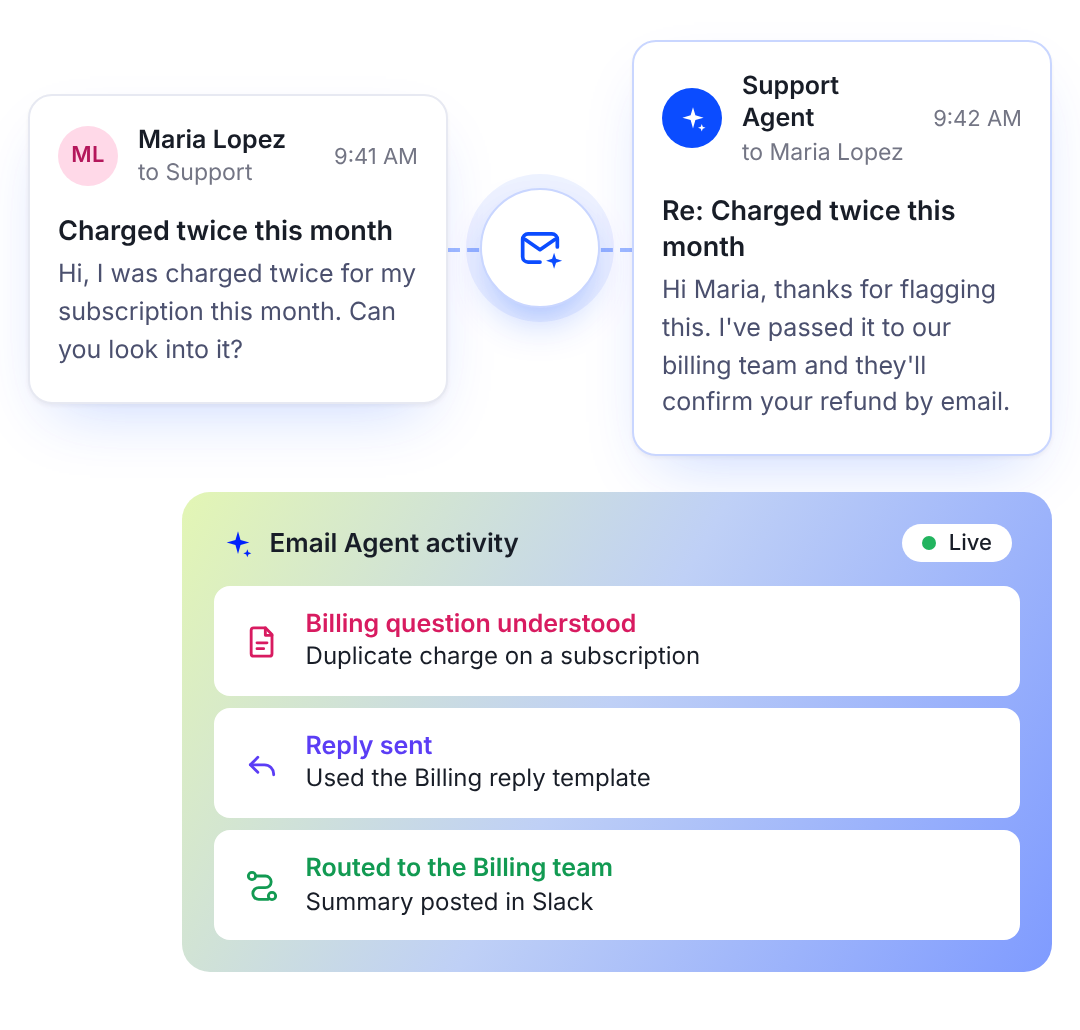
Every email read, answered or routed
Thunai works in the mailbox your team already uses, from the first read to the last follow-up.
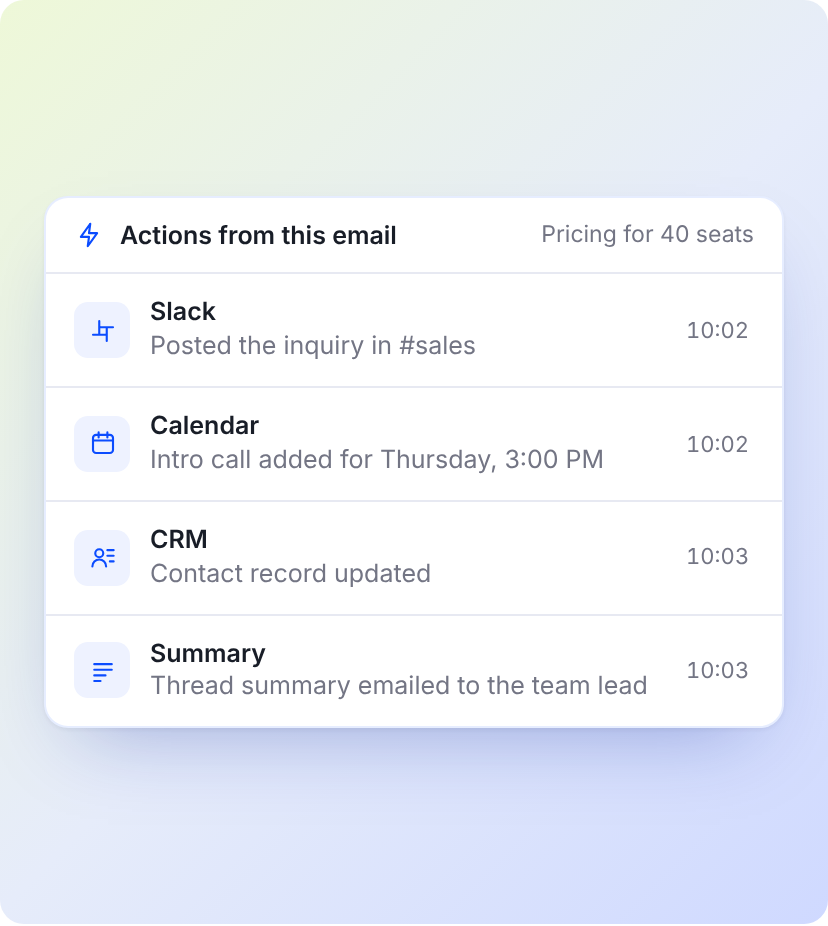
Everything a busy inbox needs
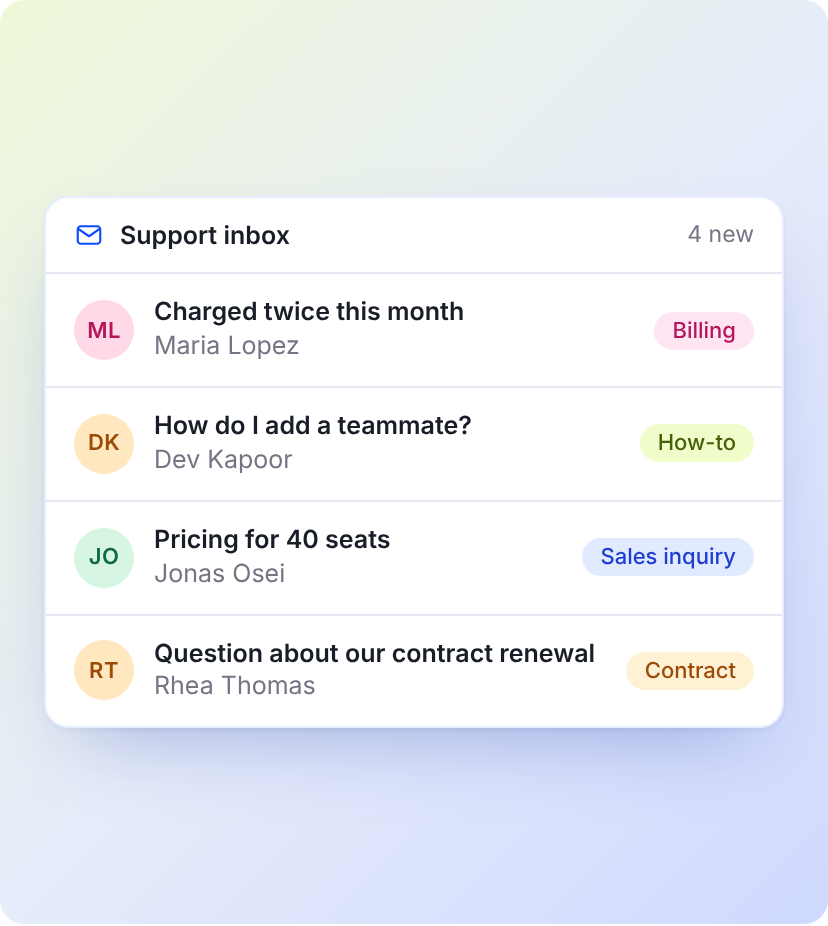
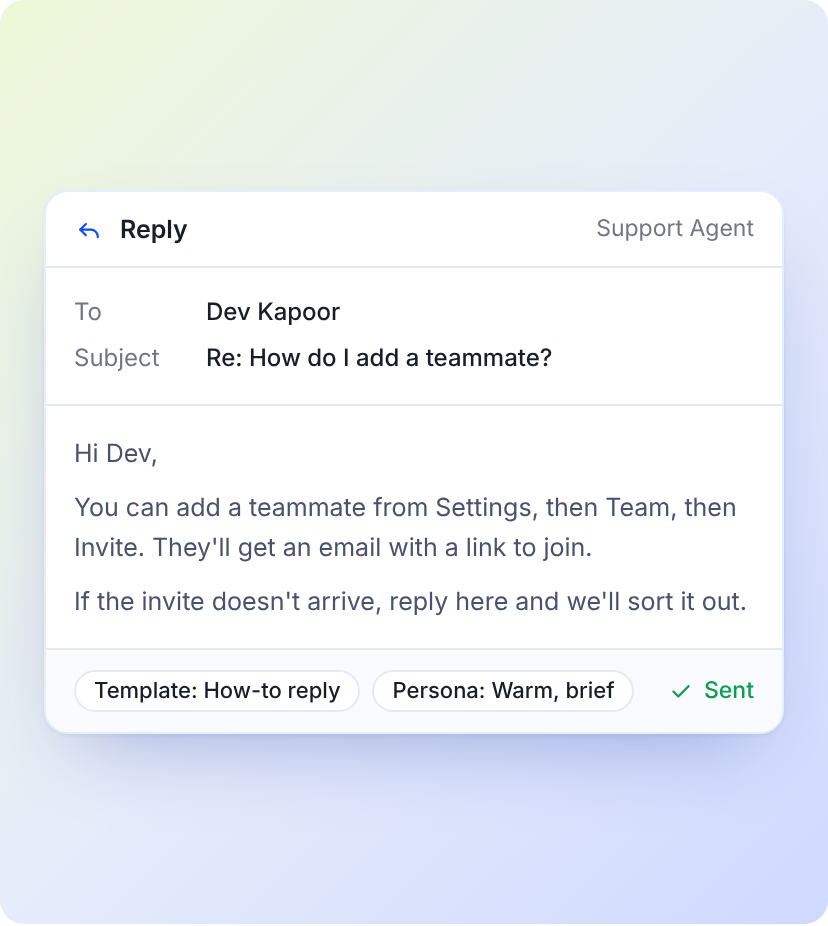
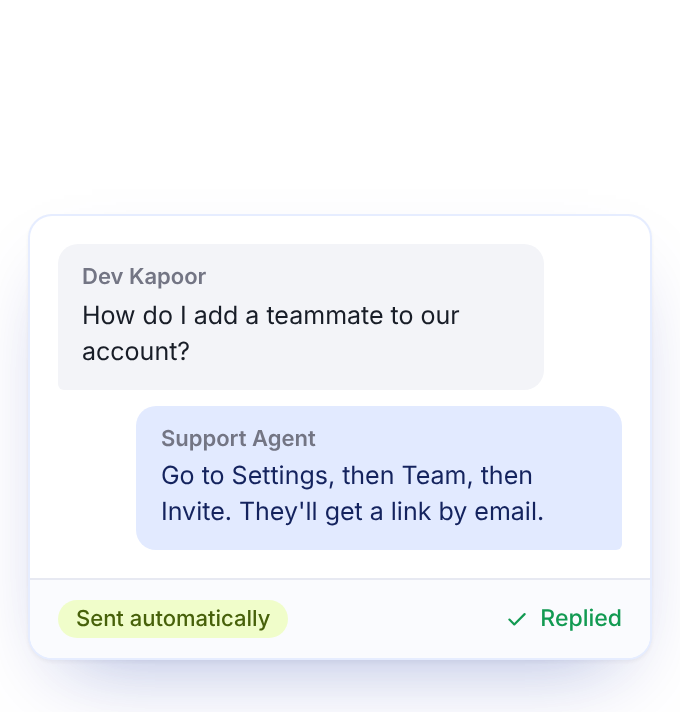
Automated email responses
Routine questions and requests are answered as they arrive.
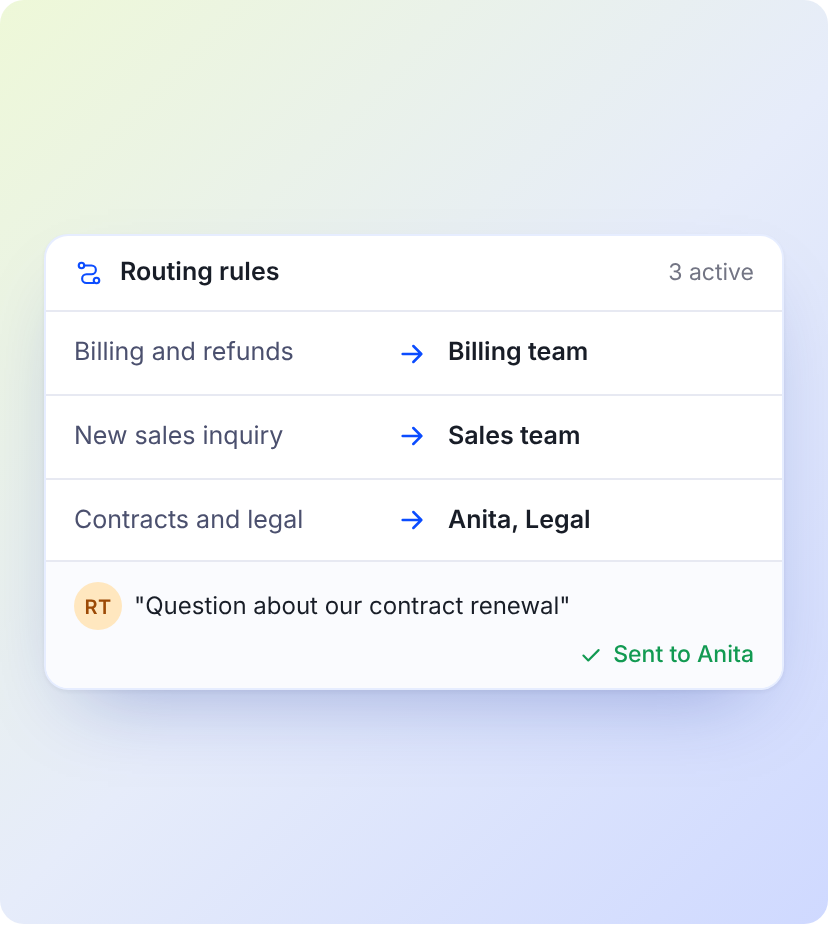
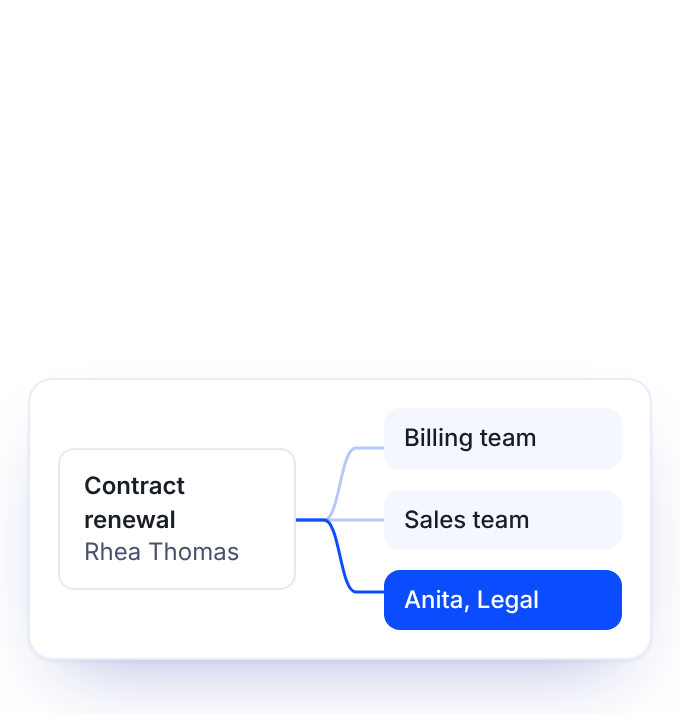
Smart email routing
Predefined rules send each email to the right department or person.
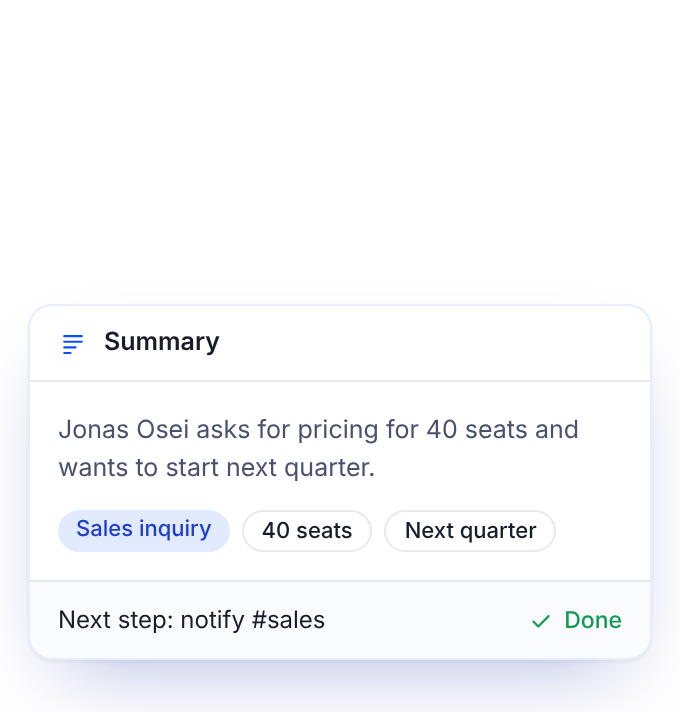
Actionable insights
Each email is summarised, and the summary can start a workflow.
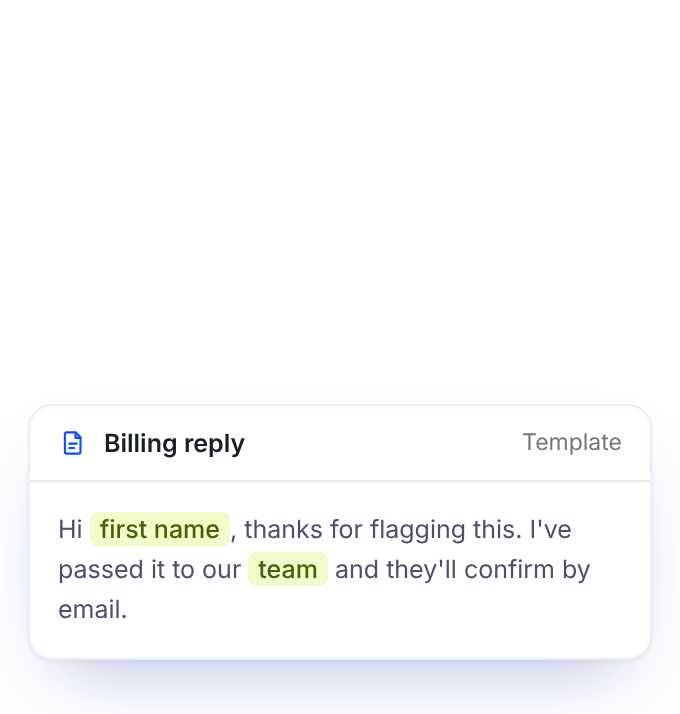
Customisable templates
Edit the templates once and every reply stays on message.
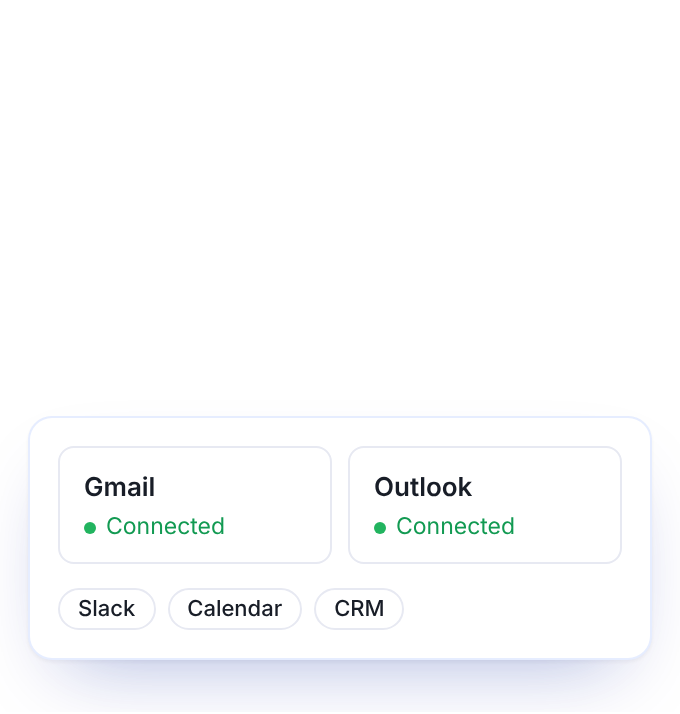
Gmail, Outlook and your other apps
Send and receive in your mailbox, then act in Slack, Calendar and CRM.
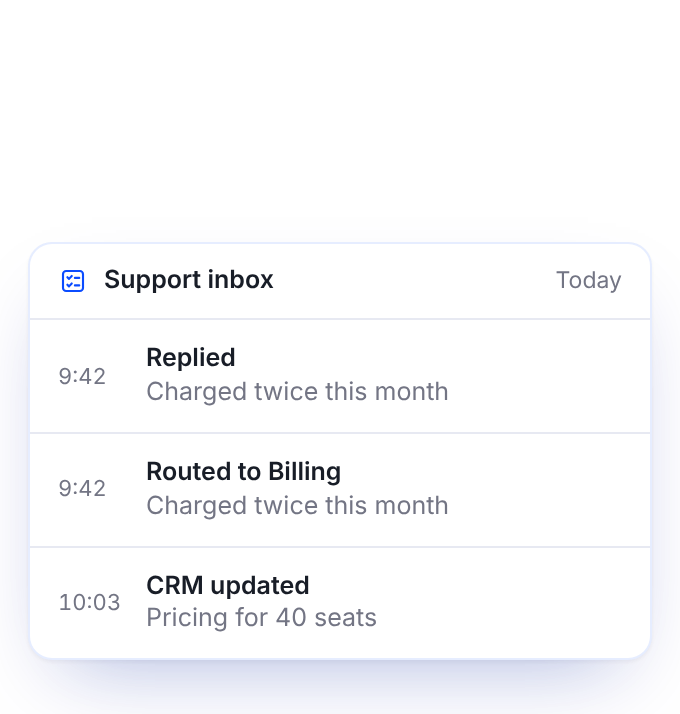
Inbox summaries and logs
See a summary of each mailbox and a log of what the agent did.


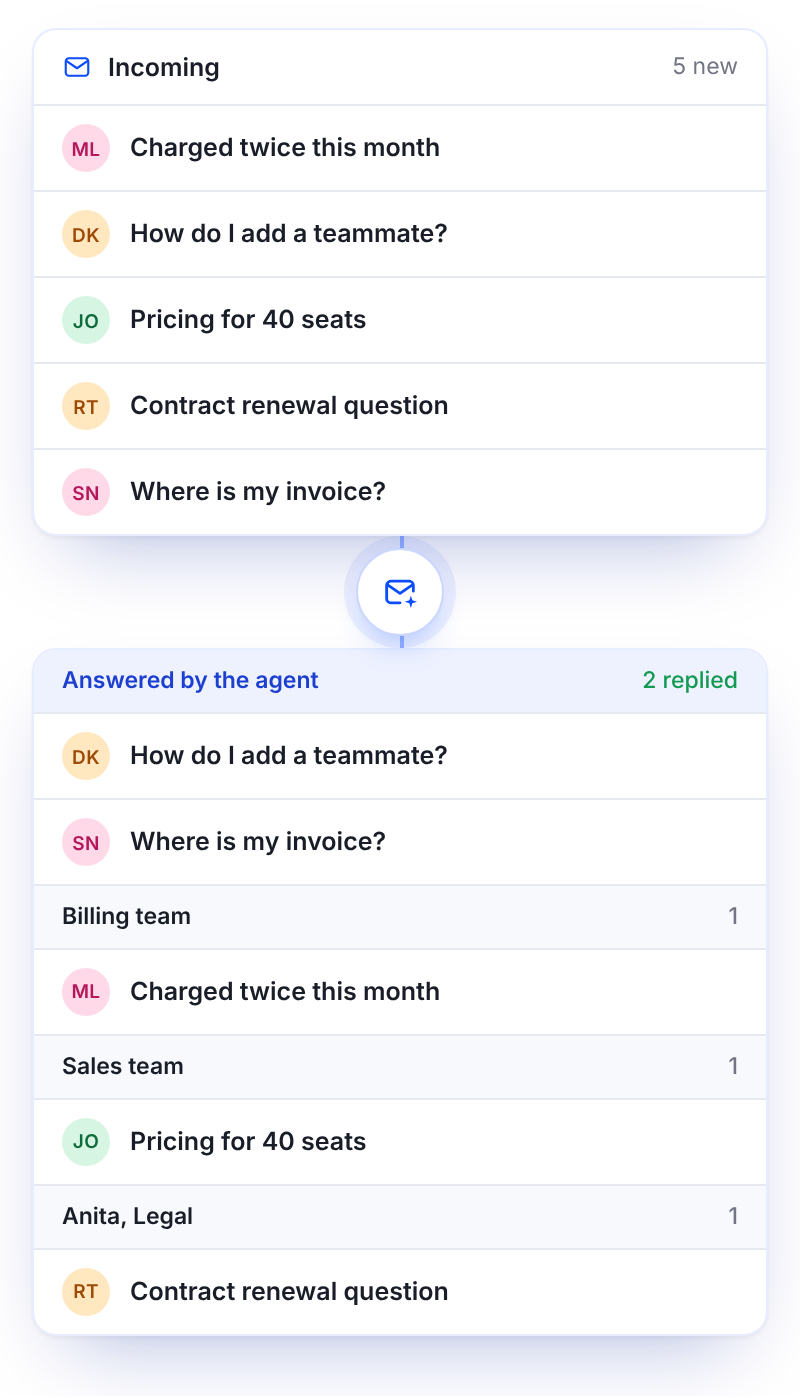
Email triage, done before your team opens the inbox
Every new email is sorted as it arrives: answered by the agent, or passed to the person who should own it.

Sorted by what it's about
The agent analyses the content of each email to understand the request.

Sent to the right owner
Rules you define route each email to a department or a named team member.

Ready to pick up
A summary of the key information goes with it, so the owner can act straight away.
Better outcomes for the whole team
The agent takes the routine email, so people spend their time on the messages that need them.

Faster first replies
Routine questions get an answer when they arrive, including outside working hours.
Every email has an owner
Routing rules decide who picks up what, so nothing waits in a shared inbox.

One consistent voice
A persona and shared templates keep replies on brand, whoever the customer is.

Less copy and paste
The Slack message, the calendar invite and the CRM update happen from the email itself.
Cleaner handoffs
A summary travels with each email, so the next person doesn't reread the whole thread.
A record of everything
Mailbox summaries and system logs show what came in and what the agent did.
One agent for support, another for sales
Each agent type comes with its own workflows and applications. Pick the one that fits the mailbox.
Answers for customers, without the queue
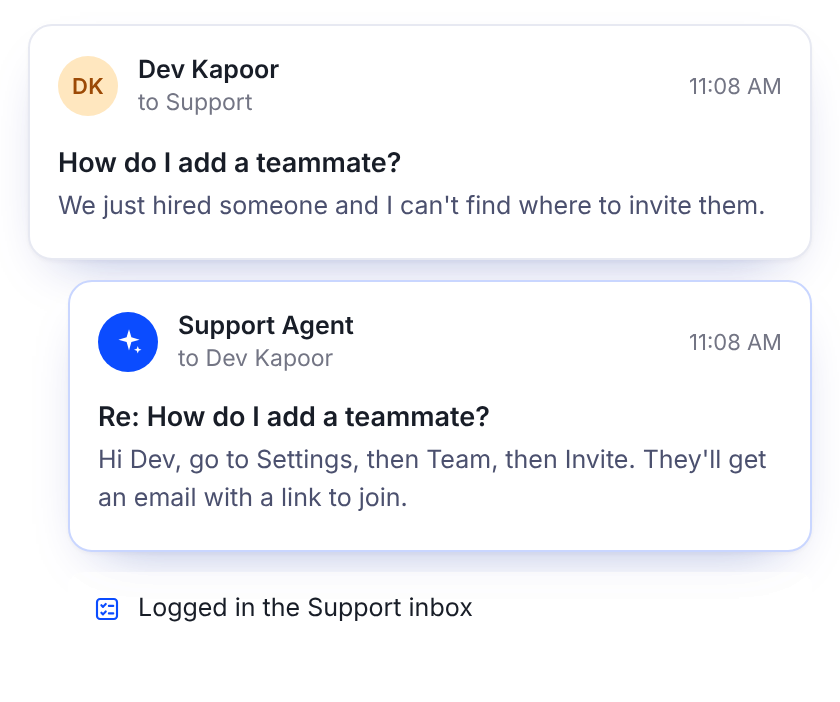
Put a Support agent on your help mailbox. It handles the questions you answer every day and passes the rest to the right team with a summary attached.

Replies to routine questions and requests from your templates
Routes everything else to a department or team member by rule
Summarises each email so handoffs don't start from zero
Mailboxes
Gmail and Outlook
Actions
Slack, Calendar, CRM
Agent types
Support and Sales
Every inquiry answered, every follow-up on time
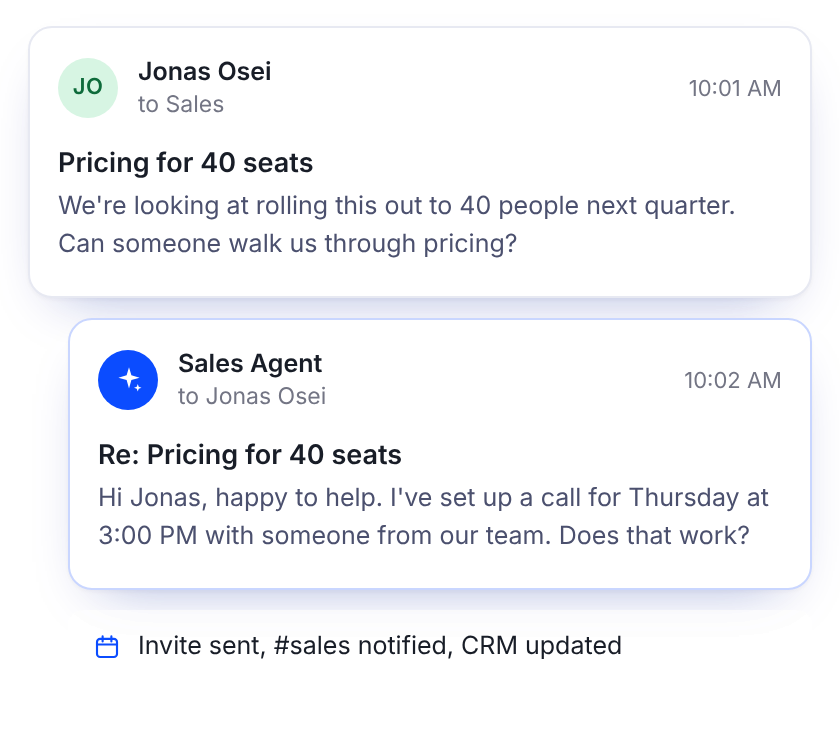
Put a Sales agent on the mailbox where inquiries land. It replies while the lead is still interested and lines up the next step for your reps.
Replies to new inquiries as they arrive
Starts the follow-up: a Slack alert, a calendar invite or a CRM update
Keeps follow-ups on schedule
Mailboxes
Gmail and Outlook
Actions
Slack, Calendar, CRM
Agent types
Support and Sales
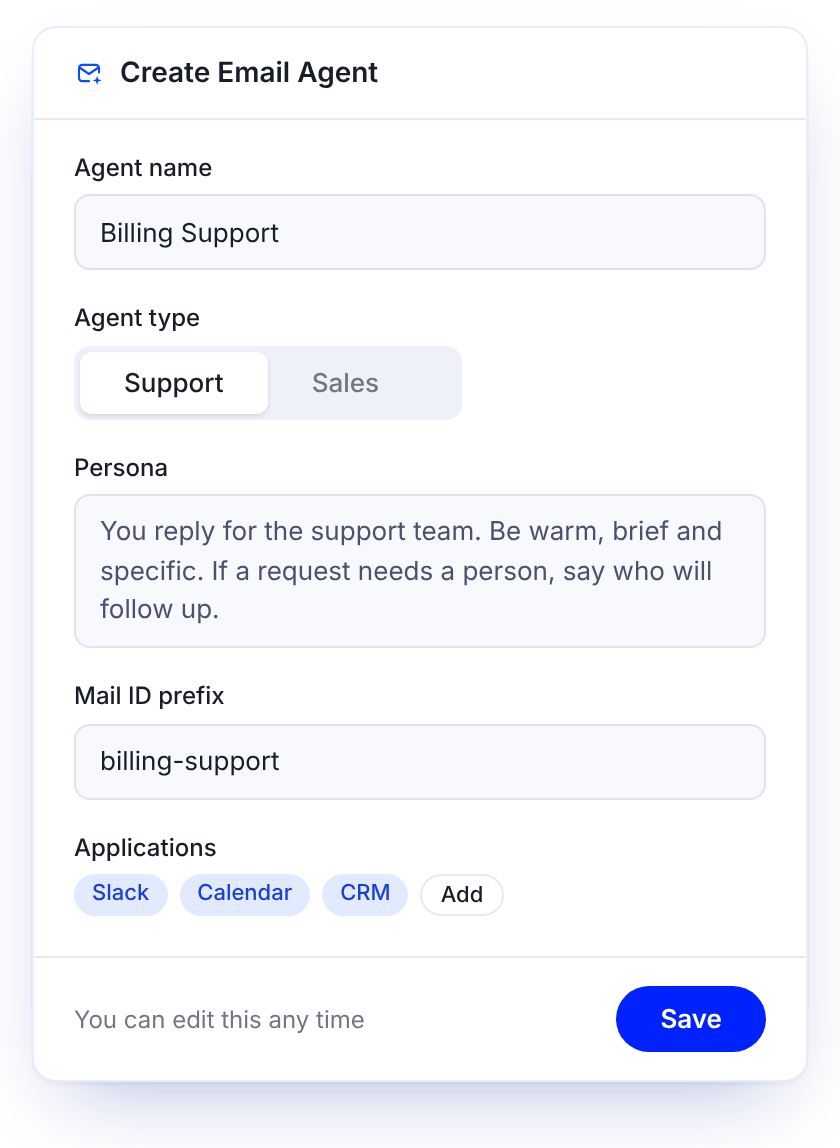
Set up an agent in five steps
No code. You describe how the agent should behave and choose what it can use.
Questions teams ask before they start
Can't see yours? Ask us in a demo.
What is an AI email agent?
An AI email agent reads the email that arrives in a mailbox, replies to routine questions, sends the rest to the right person, and starts the follow-up in other tools. A Thunai Email Agent does this in Gmail and Outlook.
What is email triage?
Email triage is sorting incoming email by what it is about and who should handle it, before anyone answers. A Thunai Email Agent does this as email arrives: it analyses each message, replies to routine questions and routes the rest to a department or team member using rules you define.
Which mailboxes does it work with?
Gmail and Outlook. The agent sends, receives and manages email in the mailbox you connect.
What is the difference between a Support agent and a Sales agent?
You choose the type when you create the agent. Each type uses different workflows and applications, so a Support agent is set up for a help mailbox and a Sales agent for the mailbox where inquiries arrive.
What happens to email the agent shouldn't answer?
Routing rules that you define send it to a specific department or team member. The agent can also summarise the email so that person has the context.
Can it take action in other tools?
Yes. Based on what an email says, an agent can trigger actions in Slack, Calendar and CRM systems.
How do I see what the agent has done?
The Inbox section shows a summary of each mailbox and its system logs. Inbox summaries can also be sent to an email address you choose.
See an Email Agent work on a live inbox
An agent reading and answering email in Gmail or Outlook
Routing rules sending email to the right team
Summaries and actions landing in Slack, Calendar and CRM
Book a Demo to see it live
Tell us which mailbox you'd start with and we'll show you an agent set up for it.