Most guides review an Outlook AI assistant for one person's inbox.
They cover drafting, summaries, and sorting. That helps.
But much business email never lands in one person's inbox. It lands in support@ and sales@.
This guide covers both. First, the personal Outlook AI assistant. Then the AI agent that works a shared mailbox for a whole team.
You will see what Copilot does, what it costs, where an agent fits, how to connect one safely, and when plain Outlook rules are enough. Prices and plans were checked on November 18, 2026.
Is there an AI in Outlook?
Yes. It is Copilot in Outlook.
Think of Copilot as the default Outlook AI assistant for anyone on Microsoft 365. Microsoft's business page says Copilot Chat comes at no extra cost with eligible Microsoft 365 plans. It also says that includes Copilot in Outlook. A paid Microsoft 365 Copilot license adds your work data from Microsoft Graph, such as files, meetings, and chats.
At home, Microsoft added Copilot to Microsoft 365 Personal and Family. Subscribers get a monthly allotment of AI credits. The Outlook features apply to outlook.com, hotmail.com, live.com and msn.com addresses. Usage limits apply.
Inside Outlook, Copilot drafts emails, changes tone, summarizes long threads and coaches your writing.
Here is what Microsoft's pricing pages showed on November 18, 2026. These are US dollar prices, per user per month, paid yearly:
- Microsoft 365 Business Standard with Copilot: $23.50
- Microsoft 365 Business Premium with Copilot: $32.00
- Microsoft 365 Copilot add-on: $30.00
- Microsoft 365 Copilot Business add-on: from $18.00, down from $21.00
Prices vary by region and exclude tax. Microsoft is changing them often, so check the live page before you buy.
One limit matters for teams. Copilot helps the person who is signed in. It does not answer a shared inbox on its own. It is a strong Outlook AI assistant for one user. A team inbox needs something else.

AI assistant vs AI agent for Outlook: the difference
An Outlook AI assistant waits for you. An agent works the mailbox on its own. That is the whole split.
Pick an Outlook AI assistant when the goal is your own speed. Pick an agent when the goal is a faster, steadier team inbox. Many companies use both an Outlook AI assistant and an agent.
Best AI assistants for a personal Outlook inbox
Short and fair. Any Outlook AI assistant should save you time in the inbox you already use. Three groups cover most choices.
- Copilot. The built-in Outlook AI assistant, described above. It is the easiest start if your plan includes it.
- Add-ins from the Microsoft marketplace. Microsoft AppSource lists add-ins that bring chat models into Outlook. Some draft replies. Some summarize threads. Quality and data handling differ a lot. Each Outlook AI assistant of this kind needs a privacy check first.
- Tools from ranking lists. Lists such as GetApp name tools like Virtualworkforce.ai, which says it works with Gmail and Outlook. Others, like Carly, say they work on your inbox even when you are not signed in. Each is another Outlook AI assistant to weigh.
- A note on verdicts. We have not tested these tools first-hand. So we give no verdict on any Outlook AI assistant here. We only describe what each vendor says. Trial one on a low-risk mailbox before you rely on it.
Best AI agents for a shared Outlook mailbox
This is the section most guides skip. A shared inbox has different needs than a personal one. A personal Outlook AI assistant rarely meets them. Use these five criteria:
- Works on shared mailboxes. It must handle support@ or sales@, not only one user's inbox.
- Uses your knowledge. Answers should come from your docs and policies, not guesses.
- Routes and escalates. It should hand hard cases to a human with context.
- Has a review mode. You should be able to approve replies before they go out.
- Keeps logs. You need a record of what the agent read, said, and did.
Options to compare:
- Thunai Email Agents. Built for support and sales mailboxes. Its docs describe agents tied to an address such as support@yourdomain.com, with routing, workflows, and an inbox log. More on this below.
- Obvious. Its help center says shared mailbox support is Outlook only. It also says the agent never sends an email without your approval.
- Copilot. A great Outlook AI assistant for the individual. Not built to run a team inbox alone.
- Other inbox tools. Some assistants list shared mailboxes as a feature. Ask each vendor to show it, not just claim it.
Test any agent against the five criteria with real emails from your own queue. Start with one mailbox and one email type.
How to connect an AI email agent to Outlook
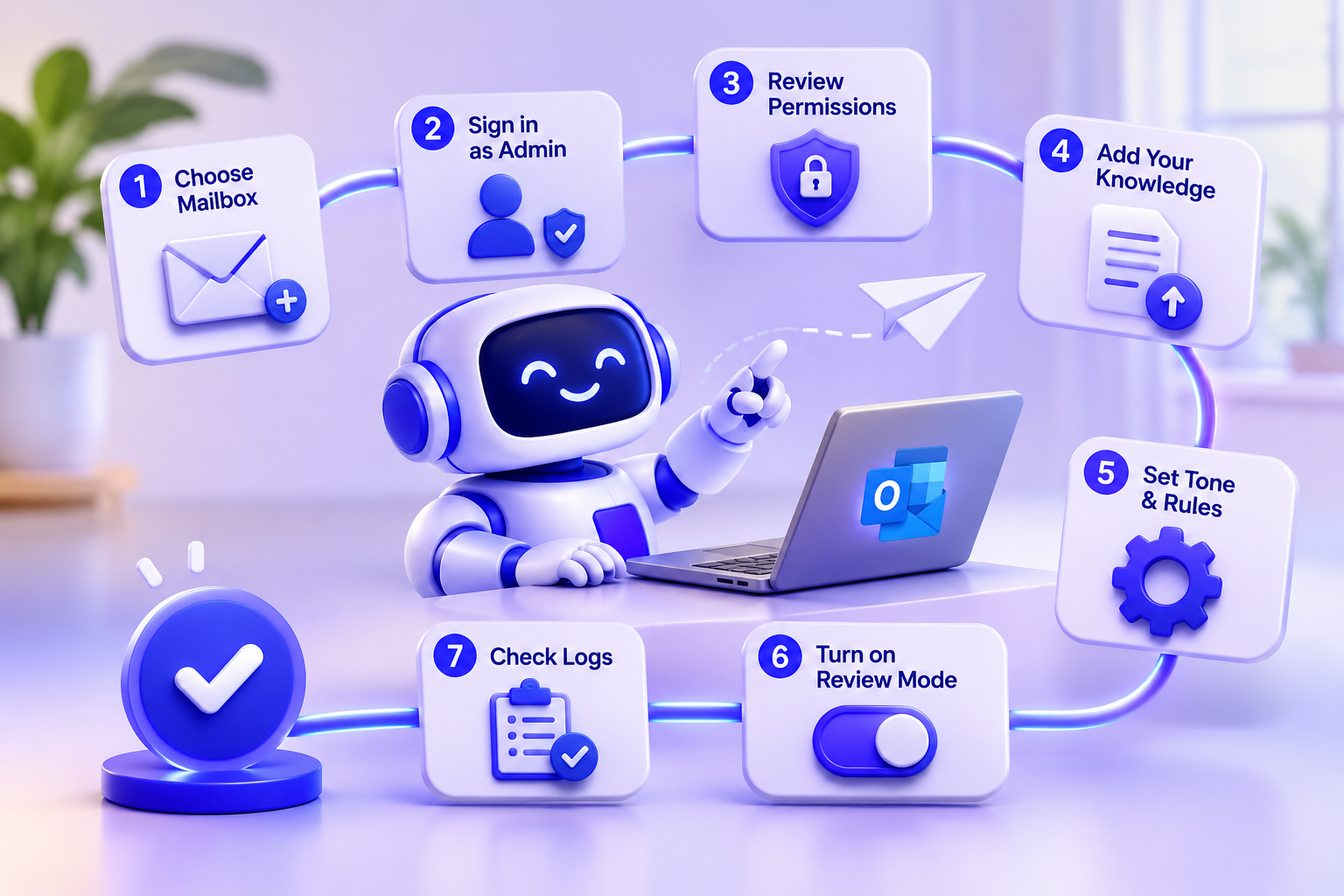
Steps differ by vendor. Decide first if you need an Outlook AI assistant or an agent. For a team inbox, you need an agent. The general path looks like this:
- Choose one mailbox. Start small, such as a support@ address.
- Sign in as an admin. You usually connect with a Microsoft work account.
- Review the permissions. The vendor will ask you to grant access. Typical requests are to read mail, send mail, and access the shared mailbox. The exact list depends on the vendor.
- Add your knowledge. Upload help articles, policies, and past answers.
- Set the tone and rules. Define what the agent may answer and when it must escalate.
- Turn on review mode. Approve replies for the first few weeks.
- Check the logs. Read what the agent did, then widen its scope.
Ask these security questions first:
- What exact permissions do you need, and why?
- Can I limit access to one mailbox?
- Is my email used to train any model?
- Where is data stored, and for how long?
- Can I remove access in one click?
- Can I see a full log of every action?
An admin should approve the answers. If a vendor cannot answer, that is your answer.
What about Gmail?
The same choice applies. An Outlook AI assistant helps one person, and a Gmail tool does the same. An agent works a shared inbox. If your team uses Google Workspace, Thunai also connects to Gmail. See the Gmail integration doc for the steps. Gmail terms are crowded with competing pages, so this stays a short section here.
Outlook automation without AI: rules, Quick Steps and Power Automate
You do not always need an Outlook AI assistant. Built-in tools handle simple, fixed work well.
Rules move, flag or categorize mail based on sender, subject or words. Use them for newsletters and alerts.
Quick Steps run a set of actions with one click. Use them for tasks you repeat, like filing and forwarding.
Power Automate links Outlook to other apps. Use it to save attachments, log requests or send alerts.
These tools stop where meaning starts. A rule cannot read a customer's question and write a fair answer. It cannot pull from your policy document. And it cannot judge when to escalate. If your mailbox needs that, move to an agent. If it only needs sorting, rules are enough.
How Thunai Email Agents work with Outlook and Gmail
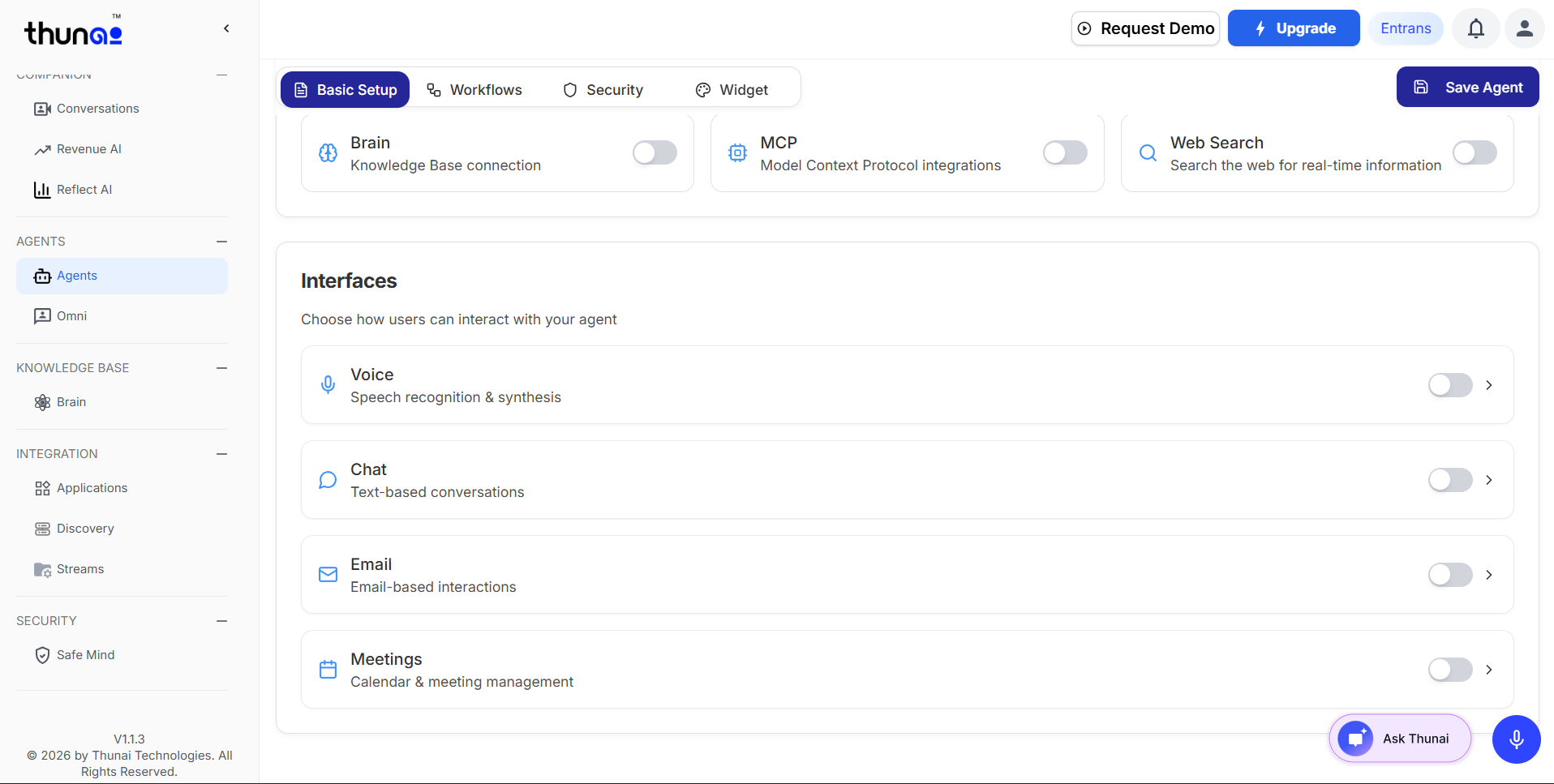
Everything below comes from Thunai's documentation. Features may change, so check the docs. Thunai agents sit beside any Outlook AI assistant your staff already use.
- Two agent types. You create a Support agent or a Sales agent.
- Your tone. You define the agent's persona and behavior.
- Your address. You set an email ID prefix, such as support@yourdomain.com.
- Workflows. You open the agent, go to Workflow, and choose the apps to connect. Thunai lists Gmail, Outlook, Slack, Calendar, and CRM tools.
- Smart routing. Emails go to the right team or person.
- Data from emails. The agent can pull useful details and act on them.
- Templates. Custom templates keep replies consistent.
- Inbox view. An Inbox section shows a mailbox summary and system logs.
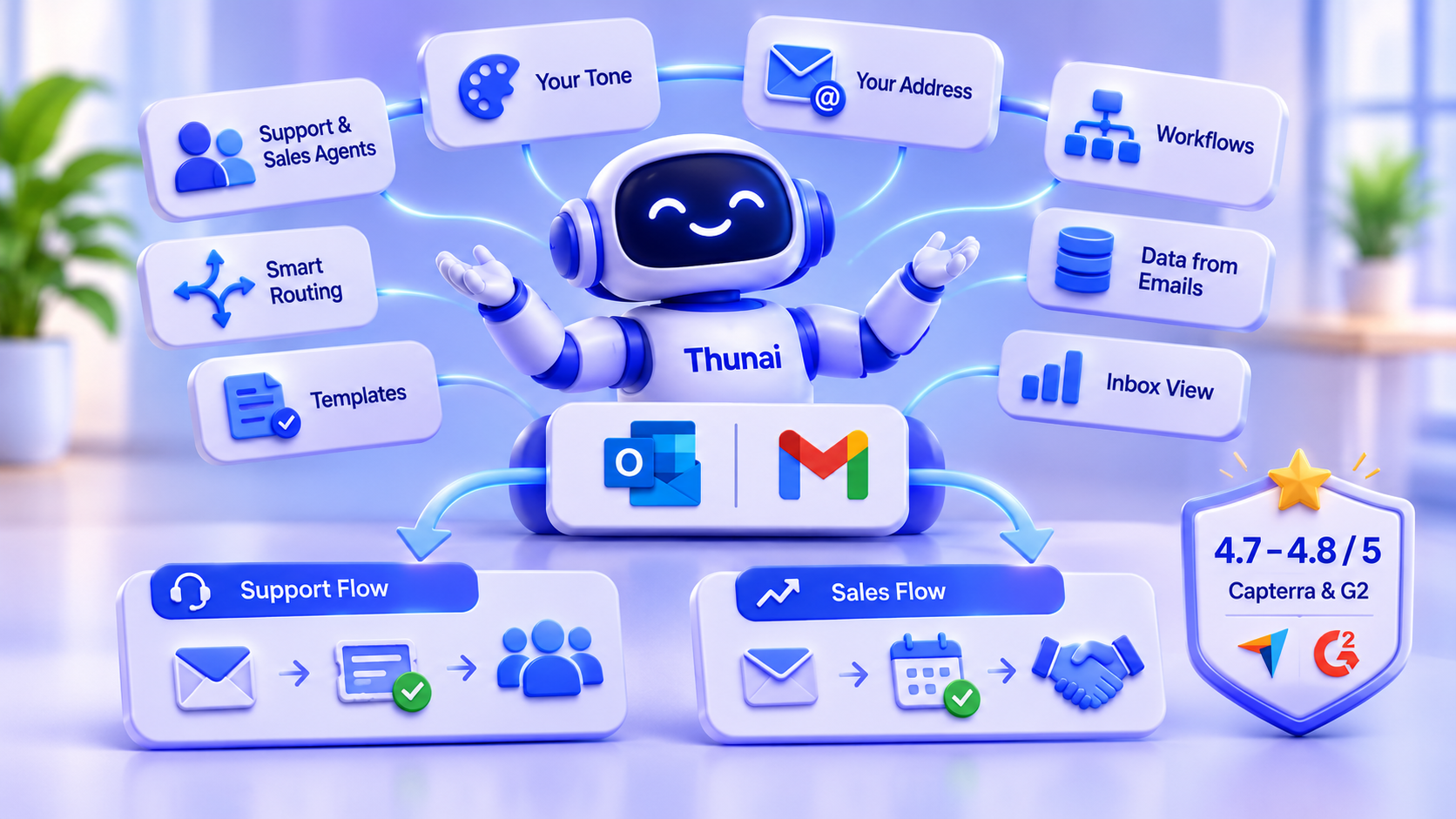
A support flow works like this. A customer emails an issue. The agent creates a ticket in your chosen app. It replies with the ticket details. Your team then works the ticket.
A sales flow is similar. A buyer asks about a product. The agent answers. With the calendar workflow, it can offer meeting slots and confirm the one the buyer picks.
On trust: Capterra's Thunai page lists sub-scores near 4.7 to 4.8 out of 5 for value for money and customer service at the time of writing. Read the live reviews on Capterra and G2 yourself, and judge for your own use case.
FAQs
Is there an AI on Outlook?
Yes. Microsoft's Copilot works inside Outlook as an outlook ai assistant. Third-party tools also add the AI through add-ins or a connected agent. Each Outlook AI assistant differs in price, privacy and scope.
Is there a free AI email assistant for Outlook?
Partly. Copilot Chat is included at no extra cost with eligible Microsoft 365 business plans, per Microsoft. Home plans include Copilot with a monthly allotment of AI credits. Many third-party tools offer free trials or free tiers. A free Outlook AI assistant usually caps volume, features, or both. Free tools rarely run a shared mailbox. Check limits before you rely on one.
Is Copilot for Outlook free?
It depends on your plan. On November 18 2026, Microsoft listed Copilot Chat, which includes Copilot in Outlook, at no extra cost with eligible Microsoft 365 plans. The full Microsoft 365 Copilot add-on is paid. Review Microsoft's current plans for your region.
Is there a ChatGPT for Outlook?
There are add-ins that bring chat models into Outlook. They work like a personal Outlook AI assistant: you ask, they draft. A connected agent is different. It reads the mailbox, uses your knowledge, and answers on its own, with your rules. See how Thunai Email Agents work.
Can an AI agent answer email from a shared mailbox?
Yes. That is what an AI email agent is for. It reads mail sent to an address like support@, answers from your knowledge, routes hard cases, and keeps a log. See the shared mailbox section above for the criteria to check.
Connect a Thunai Email Agent to an Outlook mailbox
Keep your Outlook AI assistant for personal work. Ready to take the load off your shared inbox? Create a Support or Sales agent, set your tone, choose your apps, and start with review mode on. Connect a Thunai Email Agent to an Outlook mailbox at thunai.ai.